Creatio + Authorize.Net + QuickBooks Desktop — SmartTracks Training
Find What You Need, Fast
Jump straight to a section or a specific module below. A quick-jump button also follows you down the page.
Your Creatio, Authorize.Net & QuickBooks Desktop SmartTracks, Explained
This training program walks Pampa Bay's teams through the Creatio–Authorize.Net–QuickBooks Desktop integration — how it works day to day, how to read its status, and how to configure and support it.
This program revises an earlier single, one-size curriculum into four role-based tracks. The original approach assigned identical content — including Creatio administration, QuickBooks Desktop administration, firewall/QODBC connection handling, security, and record-level error recovery — to every audience, including junior accounting and customer service staff. That content carries real operational risk if handled incorrectly (a broken sync, a corrupted integration record), and now belongs with the System Administrator only.
Front-line staff are trained to operate day to day in Creatio and to recognize and escalate a problem — not to fix a stuck sync themselves. Accounting Staff take an add-on covering QuickBooks Desktop verification and daily reconciliation. One System Administrator carries the full technical risk: configuration, connections, credentials, and error recovery across all three systems.
| Track | Audience | Instructor-Led Hours |
|---|---|---|
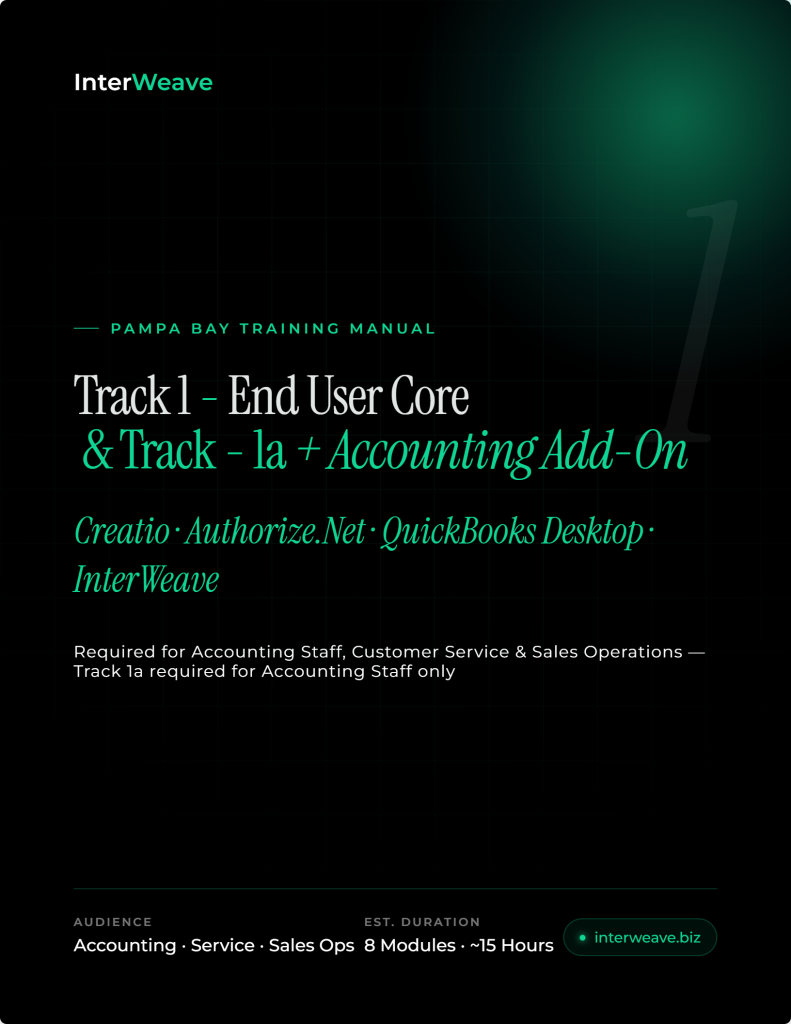
| 1 · End User — Core | Accounting Staff, Customer Service, Sales Operations | ~11 Hours |
| 1a · End User — Accounting Add-On | Accounting Staff only | +6 Hours |
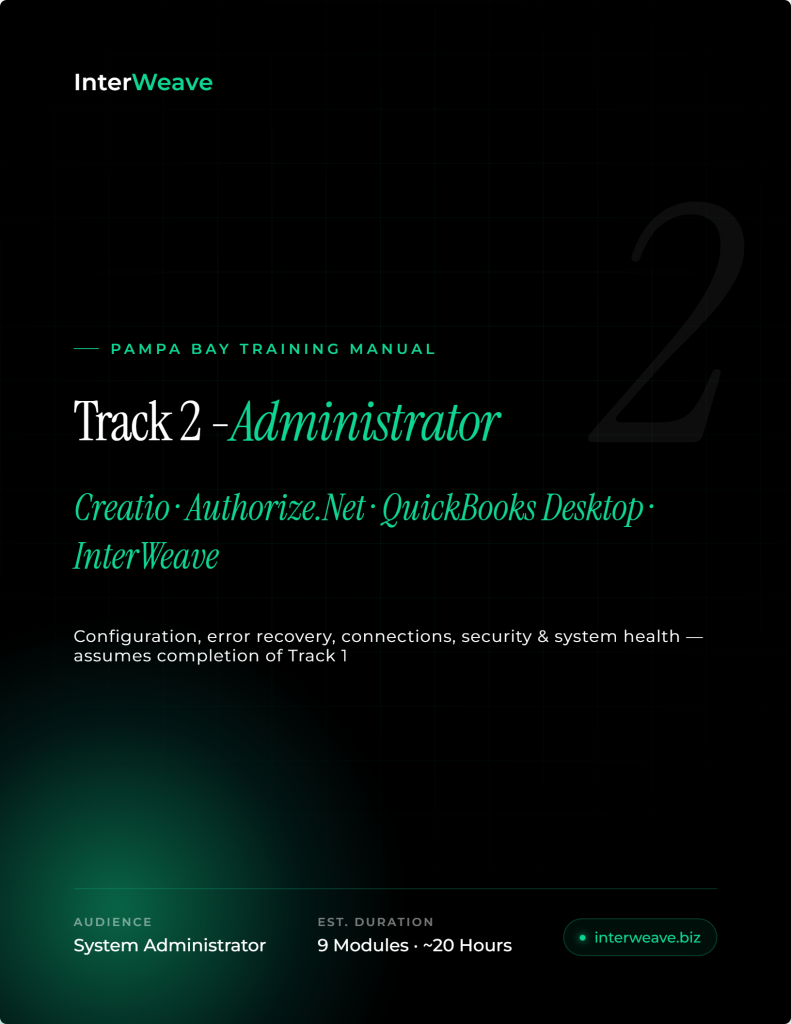
| 2 · Administrator | System Administrator | ~20 Hours |
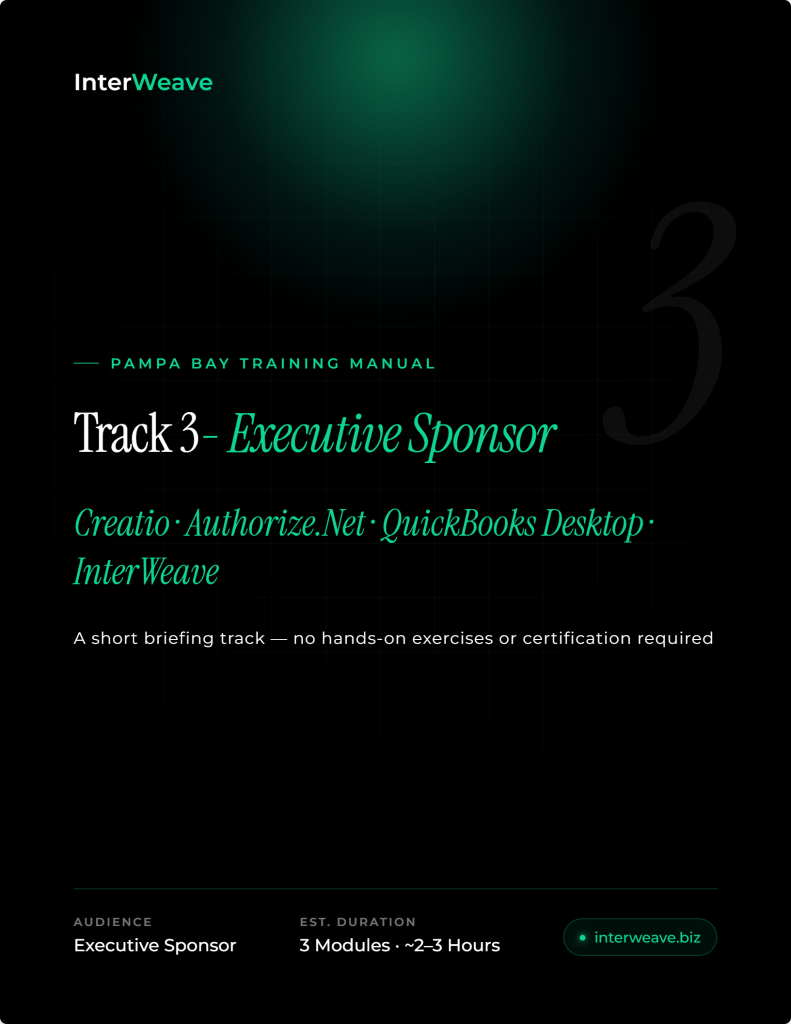
| 3 · Executive Sponsor | Executive Sponsor | ~2–3 Hours |
| Day 6 (Optional) | Accounting Staff + relevant end users | Custom, on live data |
Operating Day to Day in Creatio
For Accounting Staff, Customer Service, and Sales Operations who create and manage records in Creatio and need to recognize — not fix — a sync problem.
- Module 01 — InterWeave Fundamentals
- Module 02 — Business Process Overview
- Module 03 — Creatio End User Training
- Module 04 — Payment Processing Basics
- Module 05 — Daily Operations Orientation
- Module 06 — Recognizing & Escalating Errors
Reconciling QuickBooks Desktop Daily
For Accounting Staff only, after completing Track 1 — verifying synchronized records and completing daily reconciliation across all three systems.
- Module 07 — Accounting User Training
- Module 08 — Daily Financial Reconciliation
Configuring & Supporting the Integration
For Pampa Bay's System Administrator — full operational and technical ownership: configuration, error recovery, connections, security, and system health.
- Module 09 — InterWeave Fundamentals (full)
- Module 10 — Business Process Overview
- Module 11 — Creatio Administrator
- Module 12 — QuickBooks Administrator
- Module 13 — Payment Processing (full)
- Module 14 — Daily Operations
- Module 15 — Error Management
- Module 16 — Daily Financial Reconciliation
- Module 17 — System Administration
Understanding the Program at a Business Level
A short briefing track — no hands-on system use or certification required.
- Module 18 — InterWeave Fundamentals (Briefing)
- Module 19 — Business Process Overview (Walkthrough)
- Module 20 — Program Outcomes Briefing
Day 6 (Optional) — Pampa Bay Custom Workshop
A workshop using Pampa Bay's actual Creatio and QuickBooks data to train Accounting Staff (and other relevant end users) on their unique workflows: order processing, invoice creation, Authorize.Net payment handling, exception recovery, and the daily reconciliation process. This typically provides the greatest operational value because it moves beyond generic software training into the company's actual day-to-day procedures. Run after Track 1 (and Track 1a for Accounting Staff) is complete.
Twenty Modules, Four Tracks
Work through the modules assigned to your track in order. Track 3 is a short briefing with no hands-on exercises.
InterWeave Fundamentals
What InterWeave does for Pampa Bay in one sentence, how to log in, find an answer in the Help Center, and locate assigned courses in the Academy — and where the line sits between what end users do and what stays with the Administrator.
VIEW FULL LESSON →Business Process Overview
The Pampa Bay transaction flow — Creatio → InterWeave → QuickBooks Desktop → Authorize.Net → back to Creatio — and every core business object along the way: Account, Contact, Order, Product, Invoice, Payment, Credit Memo.
VIEW FULL LESSON →Creatio End User Training
Creating and updating Customer, Order, and Invoice records; the critical difference between a Status Field and an Integration Field; attachments; searching and filtering; and exactly which fields you must never edit.
VIEW FULL LESSON →Payment Processing Basics
Authorize.Net's role in the transaction flow, sending a Payment Link, taking a card payment, issuing a refund under your manager's approval process, and reading a Transaction Status correctly.
VIEW FULL LESSON →Daily Operations Orientation
What a Flow is in plain language, and the one screen you need for day-to-day work: record-level Sync Status. Restarting flows and exception handling stay with the Administrator.
VIEW FULL LESSON →Recognizing & Escalating Errors
What an error looks like in Creatio, when to escalate versus wait, and how to escalate with the right information the first time — without ever trying to "force" a fix yourself.
VIEW FULL LESSON →Accounting User Training
How records arrive in QuickBooks Desktop from Creatio, verifying Customers, Invoices, Payments, and Credit Memos, the General Ledger impact of each object, and why Single User Mode matters for sync.
VIEW FULL LESSON →Daily Financial Reconciliation
The end-of-day reconciliation checklist: pulling and comparing reports from Creatio, QuickBooks, and Authorize.Net, identifying exceptions, and knowing exactly what to do — and not do — with one.
VIEW FULL LESSON →InterWeave Fundamentals (Full)
InterWeave's hub-and-spoke architecture, real-time vs. scheduled processing, Production vs. Utility Flows, and navigating the Integration Manager, Company Profile, Help Center, and Academy.
VIEW FULL LESSON →Business Process Overview
The transaction flow at both business and Flow level — which Flow is responsible for each hand-off, roughly when it fires, and where each business object's data originates and is consumed.
VIEW FULL LESSON →Creatio Administrator
Adding custom fields safely, using Business Rules and Scheduled Jobs, owning Integration Fields and security, and the correct procedure for reviewing errors and resetting a stuck record.
VIEW FULL LESSON →QuickBooks Administrator
Maintaining the Company File and backup schedule, hosting and QODBC connection requirements, testing and troubleshooting the connection, and correct restart procedures.
VIEW FULL LESSON →Payment Processing (Full)
Configuring and supporting the full Authorize.Net payment lifecycle: webhook health, settlement timing, recurring billing schedules, and diagnosing payment failures end to end.
VIEW FULL LESSON →Daily Operations
Monitoring Production and Utility Flows, restarting a Flow and interpreting its logs, understanding binding, and running retry and exception processing.
VIEW FULL LESSON →Error Management
Reading error logs fluently, recognizing common QuickBooks error patterns, resolving duplicate records and binding errors, and knowing exactly when to escalate to InterWeave support.
VIEW FULL LESSON →Daily Financial Reconciliation — Administrator View
Reviewing the Exception Report escalated by Accounting Staff, applying corrective Utility Flows to resolve exceptions, and maintaining the Audit Trail from the administrator side.
VIEW FULL LESSON →System Administration
Managing users and permissions by track-based role, maintaining Company Profile and connection credentials, configuring scheduling and notifications, and managing support tickets and documentation.
VIEW FULL LESSON →InterWeave Fundamentals (Briefing)
The business problem InterWeave solves for Pampa Bay, what the program trains and why it's split by role, and the support process at a glance.
VIEW FULL LESSON →Business Process Overview (Walkthrough)
A guided walkthrough of the quote-to-payment loop at a business level, and why it lets daily reconciliation catch a discrepancy the same day it happens.
VIEW FULL LESSON →Program Outcomes Briefing
What staff are certified to do at the end of each track, and the one pulse-check question that tells you whether the training investment is paying off.
VIEW FULL LESSON →Module Detail
The complete content for each module. Work through your track's modules in order.
- Explain in one sentence what InterWeave does for Pampa Bay
- Log in to InterWeave, find an answer in the Help Center, and locate assigned courses in the Academy
- Know who to contact when something looks wrong
1.1 What Is InterWeave?
InterWeave is the connection layer that sits between the systems Pampa Bay uses every day: Creatio (where you enter customers, orders, and invoices), QuickBooks Desktop (the accounting system), and Authorize.Net (payment processing). When you create or update a record in Creatio, InterWeave automatically carries that information to QuickBooks and Authorize.Net so nobody has to re-type it.
Think of Creatio as the front door — it's where you do your work. InterWeave is the hallway connecting that front door to the back-office systems. You will do almost all of your day-to-day work in Creatio; InterWeave runs in the background.
Before InterWeave, staff had to enter the same order or payment into multiple systems by hand. That created double work and let the systems drift out of agreement. InterWeave's job is to keep Creatio, QuickBooks, and Authorize.Net saying the same thing.
1.2 What You Will and Won't Do
- You will work entirely in Creatio for day-to-day tasks (Modules 02–03).
- You will use Authorize.Net-related screens only for the customer-facing payment actions covered in Module 04.
- You will not configure InterWeave, edit integration settings, or attempt to fix a stuck sync yourself — that is reserved for the System Administrator. Your job is to recognize a problem and escalate it (Module 06).
1.3 Hands-On Walkthrough
- Go to the InterWeave login page provided in your welcome email, enter your username and temporary password, and set a new password when prompted.
- Navigate to the Help Center and search "create an order" as a test of the search pattern you'll use for how-to questions.
- Navigate to the Academy, open "My Learning Path," and confirm your Track 1 (and Track 1a, if applicable) courses appear.
- InterWeave
- The automated connection layer keeping Creatio, QuickBooks Desktop, and Authorize.Net in sync
- Help Center
- help.interweave.biz — searchable documentation and how-to articles
- Academy
- academy.interweave.biz — self-paced courses, learning paths, and certification
- In one sentence, what does InterWeave do?
- If a record looks like it failed to sync, what should you do?
- Where do you go to search how-to documentation?
- Describe the Pampa Bay transaction flow from quote to payment
- Define each core business object and where it lives
- Trace a single transaction across all four systems
2.1 The Pampa Bay Transaction Flow
Every transaction moves through the same four stops, in the same order: Creatio → InterWeave → QuickBooks Desktop → Authorize.Net → back to Creatio. An order is created in Creatio, flows through InterWeave to QuickBooks Desktop as an invoice, a payment is taken through Authorize.Net, and the payment result flows back into Creatio so the order shows as paid.
2.2 Business Objects — What Each One Means
| Object | Meaning |
|---|---|
| Account | A company or organization Pampa Bay does business with — the top-level record everything else attaches to |
| Contact | An individual person associated with an Account |
| Order | A confirmed request to purchase — created in Creatio, the starting point of the flow |
| Product | An item or service that can be added as a line on an Order |
| Invoice | The billing document generated from an Order once ready to charge — what QuickBooks Desktop receives |
| Payment | The record of money actually collected, generated when Authorize.Net processes a charge |
| Credit Memo | A record reducing what a customer owes — refund, return, or billing correction |
Rule of thumb: Creatio owns the customer relationship and the order. QuickBooks owns the accounting record. Authorize.Net owns the payment transaction. InterWeave just keeps the three in sync.
2.3 Exercise — Walk a Transaction from Quote to Payment
- In the Creatio training environment, locate an Order with a status of "Closed" or "Paid."
- Open the Order and note the linked Account and Contact.
- From the Order, open the related Invoice and record its number and amount.
- From the Invoice, open the related Payment record and record the date and amount.
- Check whether a Credit Memo exists; if so, note its amount and reason.
- Account
- The top-level company/organization record
- Invoice
- Billing document generated from an Order
- Credit Memo
- A record reducing what a customer owes
- Put these in order: Authorize.Net, QuickBooks Desktop, Creatio (start), InterWeave.
- What turns into an Invoice?
- Which system "owns" the payment transaction record?
- Create and update Customer, Order, and Invoice records correctly
- Tell the difference between a Status Field and an Integration Field
- Attach documents to a record; search and filter effectively; identify fields you must never edit
3.1 Working with Customers, Orders & Products
- Search for the company name before creating an Account — duplicate Accounts are one of the most common causes of sync problems downstream.
- Create the Order, link it to the correct Account and Contact, and add Products as line items from the catalog — never create new Products; that is an Administrator task.
- Set the Order stage per your supervisor's process, save, and confirm the generated Invoice's line items and total match the Order.
3.2 Status Fields vs. Integration Fields
This is the single most important distinction in this module. A Status Field is a business-process field you're expected to update as work progresses — e.g. Order Stage or Invoice Status. An Integration Field is a system field showing InterWeave's sync state — e.g. Sync Status, Last Synced, External ID — and is read-only reference information. Never edit them.
Never manually change: Sync Status, External ID / Integration ID fields, Last Synced timestamps, or any field marked "do not edit." Editing these does not fix a sync problem — it can make the problem harder for the Administrator to diagnose.
3.3 Attachments & Searching
Open the Attachments/Files tab on an Account, Order, or Invoice to add a document. Use the global search bar for a quick lookup by name or number, and column filters within a list to narrow by status, date range, or owner.
3.4 Exercise — Create Customer, Order, and Invoice; Verify Synchronization
- Search for a training-environment company name to confirm no duplicate exists, then create a new Account and Contact.
- Create a new Order linked to that Account, add at least two Products, and set the stage to "Fulfilled."
- Open the generated Invoice; confirm the line items and total match the Order.
- Wait for the sync interval to pass, refresh, and confirm Sync Status reads "Synced."
- Status Field
- A business-process field end users update
- Integration Field
- A read-only system field showing sync state
- Sync Status
- Synced / Processing / Error
- What's the difference between a Status Field and an Integration Field?
- You need a new Product added to the catalog. What do you do?
- An Invoice total looks wrong on a record that hasn't synced yet. What's the correct fix?
- Explain Authorize.Net's role in the transaction flow
- Send a Payment Link, take a credit card payment, and issue a refund following the approval process
- Read a Transaction Status correctly
4.1 Sending a Payment Link & Taking a Card Payment
- Open the Invoice, select Generate Payment Link, and send it to the customer — the Transaction Status updates automatically once paid.
- For manual entry: select Take Payment, enter the card details provided by the customer, and confirm the status shows "Succeeded."
Never write down, email, text, or save a customer's card number anywhere outside the payment entry screen.
4.2 Refunds
Refunds reverse money already collected, so they carry more risk than a normal payment. Confirm your manager's current refund-approval threshold before issuing one — do not act on a customer's verbal request alone.
- Open the Payment record tied to the Invoice and select Refund.
- Enter the amount (full or partial) and confirm — a Credit Memo is generated automatically in Creatio.
- Verify the Transaction Status updates to "Refunded" and the Credit Memo reflects the correct amount.
4.3 Reading Transaction Status
| Status | Meaning |
|---|---|
| Pending | Initiated but not yet confirmed — normal for a few minutes; escalate if it persists |
| Succeeded | Payment collected successfully |
| Failed | Declined or expired card — ask the customer to retry a different method |
| Refunded | Money has been returned to the customer |
- Transaction Status
- Pending, Succeeded, Failed, or Refunded
- Payment Link
- A customer-facing link generated from an Invoice
- Credit Memo
- Generated automatically in Creatio when a refund is confirmed
- A customer's card is declined. What status will you see, and what should you do?
- Where should you ever write down a customer's card number?
- What gets created automatically in Creatio when you issue a refund?
- Explain what a "Flow" is in plain language
- Find the sync status for a specific record
- Read a flow log entry for a single transaction
5.1 What's a Flow?
A Flow is InterWeave's term for one automated hand-off of information between systems — for example, the Flow carrying a new Order from Creatio into QuickBooks Desktop as an Invoice. You don't manage Flows; you only ever check the status of one as it relates to a specific record.
5.2 Checking Sync Status on a Record
- Open the Order, Invoice, or Payment record you want to check.
- Locate the Sync Status field — an Integration Field, view-only.
- For more detail, open the record's activity/log tab to see the timestamp of the last successful sync.
This is the only Flow-related screen you need for day-to-day work. A full console showing every Flow across the whole system exists, but it's an Administrator tool.
- Flow
- One automated hand-off of information between systems
- Last Synced
- Timestamp of the most recent successful sync
- What is a Flow, in your own words?
- Where do you check sync status for a record you're working on?
- Recognize what an error looks like in Creatio
- Decide when to escalate versus wait
- Escalate with the right information the first time
6.1 What an Error Looks Like
| State | What to do |
|---|---|
| Normal | Sync Status shows "Synced" with a recent Last Synced timestamp |
| Monitor | Sync Status shows "Processing" and is still within the normal time window |
| Escalate | Sync Status shows "Error," or "Processing" has gone well beyond the normal window, or a customer reports a discrepancy you can't explain |
6.2 How to Escalate
Do not attempt to re-save the record repeatedly, delete it, or change Integration Fields to try to "force" a fix — none of these resolve a sync error, and some make diagnosis harder.
- Open a ticket at the Help Center (or your team's designated channel).
- Include the record type and ID, the exact error text or status shown, and the time you first noticed it.
- Include a screenshot of the record showing the error state, and note the ticket number.
- Escalation
- Reporting an issue to the Administrator with record ID, error text, and a screenshot
- Sync Status "Error"
- A record that failed to sync and needs attention
- You see Sync Status "Error" on an Invoice. What's your first move?
- Name two things you should never do when you spot a sync error.
- Explain how records arrive in QuickBooks Desktop from Creatio
- Verify Customers, Invoices, Payments, and Credit Memos against Creatio
- Understand the General Ledger impact of each object, and why Single User Mode matters for sync
7.1 QuickBooks Desktop's Role
QuickBooks Desktop is the accounting system of record. It receives what Creatio/InterWeave sends — you are generally reviewing and reconciling here, not originating new customer or order data. If something needs to change on the customer or order side, change it in Creatio so InterWeave can re-sync the correction, rather than editing QuickBooks directly.
7.2 Verifying Invoices, Payments & Credit Memos
- Open the Invoice in QuickBooks Desktop and compare the customer, line items, and total against the corresponding Creatio record.
- Confirm each payment applied to the correct Invoice and for the correct amount — Authorize.Net payments post automatically as a Receive Payment transaction.
- Verify any Credit Memo amount and that it's applied against the correct Invoice.
If Product is inventory-tracked, spot-check on-hand quantity against recent Orders. Sales tax is calculated in Creatio and carried through — a wrong rate is a Creatio-side data issue, not something to hand-correct in QuickBooks.
7.3 General Ledger Impact
- An Invoice increases Accounts Receivable and Revenue.
- A Payment decreases Accounts Receivable and increases the deposit/bank account (via Authorize.Net settlement).
- A Credit Memo decreases Accounts Receivable and Revenue.
InterWeave needs an open connection to QuickBooks Desktop to sync. If QuickBooks is left in exclusive Single User Mode by someone else, sync can be delayed or blocked — mention that detail when you escalate a stalled sync.
7.4 Exercise — Review Records Synchronized from Creatio
- Locate the Customer, Invoice, and Payment in QuickBooks that correspond to your Module 03 exercise transaction.
- Compare each against the Creatio source record.
- Note the accounts affected (Accounts Receivable, Revenue, deposit account).
- General Ledger
- The accounting record each object posts to
- Single User Mode
- An exclusive QuickBooks lock that can delay sync
- Receive Payment
- The QuickBooks transaction type a posted Authorize.Net payment creates
- You find an Invoice total in QuickBooks that doesn't match Creatio. What do you do?
- Where should a customer's address be corrected — Creatio or QuickBooks?
- Why can Single User Mode cause a sync delay?
- Complete the end-of-day reconciliation checklist
- Pull and compare reports from Creatio, QuickBooks, and Authorize.Net
- Identify and document exceptions, and know what to do — and not do — with one
8.1 End-of-Day Checklist
- Pull the day's Creatio Order/Invoice report.
- Pull the day's QuickBooks Invoice and Received Payments report.
- Pull the day's Authorize.Net Settlement report — what actually funded to the bank.
- Match transactions across all three by Order/Invoice number, then amount and date.
- Log any exceptions on the Exception Report and sign off in the Audit Trail.
A transaction in Creatio but not yet in QuickBooks or Authorize.Net may simply not have synced yet — check the normal sync window before treating it as an exception.
8.2 Exceptions
Log it and escalate it to the System Administrator, who has the corrective Utility Flow tools to fix it. Do not attempt to manually re-enter or delete a transaction in QuickBooks to "fix" the mismatch yourself — that can create a duplicate or make it harder to trace.
8.3 Exercise — Complete a Full Day's Reconciliation
- Pull all three reports for the assigned date and match every transaction using the reconciliation worksheet.
- For any unmatched item, confirm it's outside the normal sync window before logging it as an exception.
- Escalate logged exceptions to the Administrator and sign off in the Audit Trail.
- Exception
- A transaction that doesn't match across systems after the normal sync window
- Audit Trail
- The signed-off record of each day's reconciliation
- Settlement
- Authorize.Net's deposit of funds to Pampa Bay's bank account
- Why reconcile daily instead of weekly or monthly?
- A transaction is in Creatio but not yet in QuickBooks. Is that automatically an exception?
- Who fixes a logged exception?
- Describe InterWeave's hub-and-spoke architecture
- Explain the difference between real-time and scheduled processing
- Distinguish Production Flows from Utility Flows; navigate the Integration Manager, Company Profile, Help Center, and Academy
9.1 Hub-and-Spoke Architecture
InterWeave sits at the center of a hub-and-spoke integration: Creatio, QuickBooks Desktop, and Authorize.Net each connect only to the hub, not to each other. Every hand-off passes through InterWeave, which is what lets it enforce consistent mapping, logging, and error handling in one place.
Because everything routes through the hub, most integration problems can be diagnosed from one place — the Integration Manager — rather than hunting across three disconnected systems.
9.2 Real-Time vs. Scheduled Processing
| Type | Behavior |
|---|---|
| Real-time Flow | Triggered immediately by an event — e.g. an Order saved in Creatio |
| Scheduled Flow | Runs on a timer — e.g. a nightly job reconciling inventory counts |
9.3 Production Flows vs. Utility Flows
| Type | Behavior |
|---|---|
| Production Flow | Moves live business data as part of normal operations |
| Utility Flow | Administrator-run maintenance and correction — re-syncing a record or clearing a stuck queue item |
End users interact only with the outcomes of Production Flows. Utility Flows are your tool, covered in depth in Module 14.
- Hub-and-Spoke
- InterWeave is the hub; the three systems are spokes connecting only to it
- Production Flow
- Moves live business data
- Utility Flow
- Administrator-run correction tool
- Why does hub-and-spoke architecture make troubleshooting easier than point-to-point integration?
- What's the difference between a real-time and a scheduled Flow?
- What's a Utility Flow used for?
- Describe the transaction flow at both business and Flow level
- Identify which Flow is responsible for each hand-off
- Know where each business object's data originates and is consumed
10.1 The Transaction Flow, End to End
| Hop | Flow | Trigger |
|---|---|---|
| Creatio → QuickBooks | Order-to-Invoice Flow | Real-time, on Order save with a billable stage |
| QuickBooks → Creatio | Invoice-Confirmation Flow | Real-time, on successful QuickBooks write |
| Creatio/Invoice → Authorize.Net | Payment-Link / Charge Flow | Real-time, on payment action |
| Authorize.Net → Creatio & QuickBooks | Payment-Result Flow | Real-time (webhook-driven) plus a scheduled reconciliation pass |
10.2 Business Objects — Ownership Map
- Account / Contact — owned in Creatio; read-only mirror in QuickBooks
- Order — owned in Creatio; the origin event for the Order-to-Invoice Flow
- Product — owned in Creatio, mapped to a QuickBooks Item; administrator-managed on both sides
- Invoice — created in QuickBooks by the Order-to-Invoice Flow; mirrored back to Creatio read-only
- Payment — originates in Authorize.Net; posted to QuickBooks as a Receive Payment and mirrored to Creatio
- Credit Memo — originates from an Authorize.Net refund; posted to QuickBooks and mirrored to Creatio
10.3 Exercise — Trace a Transaction by Flow
- In Creatio, locate a recently completed Order.
- In the Integration Manager, filter the Flow activity log to that Order's record ID.
- Identify the Order-to-Invoice Flow run and note its timestamp and duration, then the Payment-Result Flow run(s).
- Build a timeline: Order saved → Order-to-Invoice Flow → Invoice-Confirmation Flow → Payment action → Payment-Result Flow.
- Order-to-Invoice Flow
- Real-time Flow creating the QuickBooks Invoice
- Payment-Result Flow
- Webhook-driven Flow carrying payment results back
- Which Flow creates the QuickBooks Invoice?
- What triggers the Payment-Result Flow?
- Where is a Product record owned, and where is it mapped to?
- Add and manage custom fields safely
- Understand how Business Rules and Scheduled Jobs affect data flow
- Review errors and reset stuck records at the Creatio level
11.1 Custom Fields
Any new field added to an Order, Invoice, or other synced object should be mapped in InterWeave before it's relied on downstream — an unmapped custom field simply won't travel to QuickBooks or Authorize.Net, a common source of "why didn't this show up" tickets. Add the InterWeave field mapping in the same change window as the Creatio field.
11.2 Business Rules, Scheduled Jobs & Security
Business Rules control what end users can and cannot do to a record — use them to enforce the "what NOT to edit" boundaries end users are trained on at the permission level, not just by convention. Scheduled Jobs run on a timer inside Creatio (distinct from InterWeave's own Flows); review the job list periodically to confirm nothing is failing silently.
11.3 Resetting a Stuck Record
- Confirm the record is genuinely stuck (Sync Status "Error" or "Processing" well past the normal window) rather than mid-flight.
- Open the record's Flow log in the Integration Manager and identify the last failed step and its error message.
- If the underlying cause is fixed, reset the Sync Status field to allow the Flow to re-run — never reset blind.
- Re-trigger the Flow and confirm it now completes; log the reset with record ID, original error, fix applied, and outcome.
- Business Rule
- Enforces end-user field boundaries at the permission level
- Scheduled Job
- A timer-based Creatio job, distinct from an InterWeave Flow
- Why should a new custom field be mapped in InterWeave at the same time it's added in Creatio?
- What should you confirm before resetting a stuck record's Sync Status?
- How should Business Rules relate to end-user training on Integration Fields?
- Maintain the Company File and backup schedule
- Understand hosting and QODBC connection requirements
- Test and troubleshoot the QuickBooks connection; follow correct restart procedures
12.1 Company File, Backups & QODBC
InterWeave connects to a single QuickBooks Desktop Company File — confirm only one file is in active use, and never rename or move it without updating the connection configuration. Confirm the backup schedule runs outside the peak sync window, since a backup can briefly lock the file. QODBC is the driver InterWeave uses to read and write QuickBooks data; if hosted, confirm QODBC is installed on the machine InterWeave actually connects to.
12.2 Connection Testing & Restart Procedures
- Open the Integration Manager's connection status panel and run the built-in connection test.
- If it fails, confirm QuickBooks is open with the Company File loaded, no exclusive Single User Mode lock, QODBC is running, and the firewall allows the required port.
- To restart: pause new Flow triggers, close QuickBooks fully, restart the QODBC service, reopen QuickBooks and the correct file, then re-test before resuming.
A firewall or antivirus update is a common, easy-to-miss cause of a sync outage that otherwise looks like a QuickBooks problem.
- QODBC
- The driver InterWeave uses to read/write QuickBooks Desktop data
- Company File
- The single QuickBooks Desktop file InterWeave connects to
- What role does QODBC play?
- Name two causes of a QuickBooks connection failure that aren't actually QuickBooks bugs.
- Why should backups be scheduled outside the peak sync window?
- Configure and support the full Authorize.Net payment lifecycle
- Understand Webhooks and Settlement
- Diagnose payment failures and handle Recurring Billing
13.1 Webhooks & Settlement
Authorize.Net notifies InterWeave of payment events via webhooks. If webhook delivery is disrupted, payment results stop flowing back into Creatio/QuickBooks even though Authorize.Net is processing normally — this looks like a sync problem but is a connectivity issue.
A string of failed webhook deliveries is often the real root cause behind a batch of "payment succeeded but Creatio still shows Pending" tickets.
Settlement is the process by which funds actually deposit to Pampa Bay's bank account, on Authorize.Net's payout schedule — distinct from the transaction succeeding, and can lag a day or more.
13.2 Recurring Billing & Payment Failures
For any customer on a recurring schedule, confirm it's correctly configured and mapped to the right Creatio Account — a misconfigured schedule fails silently until a customer notices a missed charge.
- Confirm the Transaction Status and the specific decline/error reason in Authorize.Net.
- Determine whether the failure is customer-side (declined card, no action needed) or system-side (webhook/API error).
- For system-side failures, check webhook delivery status and API connectivity before assuming a card issue.
- Webhook
- Authorize.Net's mechanism for notifying InterWeave of payment events
- Settlement
- Deposit of funds, distinct from a transaction succeeding
- Recurring Billing
- A subscription schedule mapped to a Creatio Account
- A payment succeeded in Authorize.Net but Creatio still shows "Pending." What should you check first?
- What's the difference between a transaction "succeeding" and "settling"?
- Why is a misconfigured recurring billing schedule riskier than a one-off payment failure?
- Monitor Production and Utility Flows
- Restart a Flow and interpret logs
- Understand binding and synchronization; run retry and exception processing
14.1 Restarting Flows & Viewing Logs
- Identify the failed Flow run in the Integration Manager and read its error message.
- Confirm the underlying cause is resolved, then restart the specific Flow run rather than a broad re-sync, to limit blast radius.
- Always read the failing step's payload, not just the summary error — the summary often just says "failed."
14.2 Binding, Retry & Exception Processing
Binding is how InterWeave links a Creatio record to its corresponding QuickBooks/Authorize.Net record via the External ID. A binding error means the link itself is broken or ambiguous — often from a duplicate record — distinct from a simple data-mapping error.
Every Utility Flow run should be logged with a reason — these are audited, since they touch production data directly.
Most transient failures retry automatically on a backoff schedule; manual retry is for failures that didn't auto-resolve. Exceptions escalated from Accounting Staff (Module 08) should be triaged, root-caused, corrected via Utility Flow if needed, and reported back so Accounting can close their entry.
- Binding
- The link between a Creatio record and its QuickBooks/Authorize.Net counterpart
- Retry Processing
- Automatic or manual re-attempt of a failed Flow
- Why should Utility Flow runs be logged with a reason?
- What's a binding error, distinct from a simple mapping error?
- When should you read a Flow's payload instead of just its summary error?
- Read error logs fluently
- Recognize common QuickBooks error patterns
- Resolve duplicate records and binding errors; follow correct recovery and escalation procedures
15.1 Common QuickBooks Errors
| Error | Likely Meaning |
|---|---|
| Duplicate record found | A Customer or Item exists under a slightly different name; requires manual merge or rename |
| Record is in use | Another process or user (often Single User Mode) has the record locked; retry after the lock clears |
| Field exceeds maximum length | Creatio data exceeds a QuickBooks field's character limit — fix at the source |
| Connection lost mid-transaction | A network or availability blip; usually resolved by retry once connectivity is confirmed |
15.2 Resolving a Duplicate & Escalation
- Identify which record is the correct "source of truth" (usually the one with the most complete transaction history).
- Merge or rename the duplicate in QuickBooks so only one record remains, re-bind if necessary, and re-trigger the failed Flow.
Escalate to InterWeave support when an error doesn't match any known pattern, recurs after a confirmed fix, or appears to be a platform-side issue rather than Pampa Bay's configuration.
- Duplicate Record
- A Customer/Item existing under a slightly different name
- Binding Error
- A broken or ambiguous link, often from a duplicate
- What's the correct first step when triaging any error?
- When merging a duplicate record, what should you confirm before deleting the losing one?
- When should you escalate to InterWeave support rather than keep troubleshooting?
- Review the Exception Report escalated by Accounting Staff
- Apply corrective Utility Flows to resolve exceptions
- Maintain the Audit Trail from the administrator side
16.1 Where This Picks Up
Accounting Staff run the daily reconciliation and log exceptions (Module 08). Your job is to resolve what they escalate — you are not expected to independently re-run the full three-way reconciliation, only to close out flagged exceptions.
16.2 Resolving a Reconciliation Exception
- Open the flagged record in the Integration Manager and review its full Flow history.
- Identify why it diverged: missed trigger, binding error, timing (still mid-flight), or a genuine data mismatch.
- If mid-flight, confirm it has since completed and report that back — no action needed.
- If genuine, run the appropriate corrective Utility Flow and confirm all three systems agree, then report the resolution back to Accounting.
Every corrective action tied to a reconciliation exception should be logged with the original discrepancy, root cause, action taken, and confirmation all three systems now match.
- Corrective Utility Flow
- The Flow used to resolve a flagged reconciliation exception
- Exception Report
- Accounting's log of unmatched transactions
- Should you re-run the full three-way match yourself, or start from Accounting's Exception Report?
- An exception turns out to be a record that was simply still mid-sync. What do you do?
- What should every corrective action in the Audit Trail include?
- Manage users and permissions across the integration
- Maintain Company Profile and Connection Credentials
- Configure scheduling and notifications; manage support tickets and documentation
17.1 Users, Permissions & Credentials
Provision new staff into the correct track-based role rather than granting broad access by default — access should match training completed. Review permissions periodically, especially Integration Field lock-down (Module 11).
Never paste live credentials into a ticket, chat message, or shared document. If InterWeave support needs to verify a connection, use their supported secure method.
17.2 Scheduling, Notifications & Documentation
Stagger Scheduled Flows and Scheduled Jobs (e.g. not running a QuickBooks backup and a scheduled reconciliation Flow at the same time) to avoid resource contention. Confirm failure notifications route to you promptly — a Flow failure that sits silent until someone notices missing data is far more expensive to fix than one caught within minutes. Keep Pampa Bay-specific documentation current — stale documentation is worse than none, because staff trust it by default.
- Connection Credentials
- API keys, QODBC details, Authorize.Net keys — rotated per security policy
- Notifications
- Routed failure alerts for Flow issues
- Why provision new staff by track-based role rather than broad default access?
- Where should live connection credentials ever be pasted?
- Why keep Pampa Bay-specific documentation current rather than static?
- Explain in business terms what InterWeave does for Pampa Bay
- Understand what problem it solves and what it costs to run
- Know the support process at a glance
18.1 The Business Problem
Before InterWeave, Pampa Bay staff entered the same order, invoice, and payment information into three separate systems by hand — Creatio for sales, QuickBooks Desktop for accounting, and Authorize.Net for payments. Manual re-entry across three systems reliably drifts out of agreement over time, and that drift is expensive to find and even more expensive to unwind once it's compounded over weeks or months.
18.2 What InterWeave Does
InterWeave keeps Creatio, QuickBooks, and Authorize.Net saying the same thing, automatically, so staff enter data once instead of three times.
This training program is split by role rather than one blanket course for everyone, because the risk profile of each role is different. Front-line staff are trained to operate day-to-day and recognize and escalate anything unusual — they are deliberately not given access to change how the systems are connected. Pampa Bay's System Administrator is the first line of support for day-to-day issues; InterWeave's own support is the second line for anything beyond Pampa Bay's configuration.
- Follow a transaction from quote to payment at a business level
- Understand where money and data actually flow
19.1 The Transaction Flow
A transaction starts when Sales or Customer Service creates an Order in Creatio. InterWeave automatically turns that into an Invoice in QuickBooks. A payment is then collected through Authorize.Net, and the result — paid, failed, or refunded — flows back through InterWeave into Creatio, closing the loop. Every dollar Pampa Bay collects moves through this same path.
| System | Responsible For |
|---|---|
| Creatio | The customer and sales relationship — who the customer is, what they ordered |
| QuickBooks Desktop | The books — the official accounting record |
| Authorize.Net | The actual movement of money — charging and refunding customers |
| InterWeave | The connective layer keeping the other three in sync, automatically |
19.2 Why This Matters at the Business Level
This flow is why Pampa Bay's daily financial reconciliation — performed by Accounting Staff and reviewed by the Administrator — can catch a discrepancy the same day it happens, rather than at month-end close.
- Understand what staff are certified to do at the end of each track
- Know how to gauge whether the training investment is paying off
20.1 What "Done" Looks Like, By Track
| Track | Certified Outcome |
|---|---|
| End User Core | Create Customer, Order, and Invoice; process a payment; verify it synchronized to QuickBooks and Authorize.Net |
| Accounting Add-On | Review a synchronized transaction end-to-end; complete a full day's reconciliation; correctly identify and escalate a discrepancy |
| Administrator | All End User outcomes, plus: run a Utility Flow, resolve a production error, complete daily reconciliation including corrective action |
20.2 How to Read Progress
"How many staff are certified per track, and what's in the current exception/escalation backlog?" A shrinking backlog and rising certification count are the two real signals this program is working.
You're welcome to sit in as an observer on any End User or Administrator exercise session if you'd like a closer look at how the system works day-to-day. No hands-on participation or certification is expected of you.
Transaction Flow Quick Reference
The Flow-level map behind Pampa Bay's quote-to-payment loop, for fast lookup during troubleshooting.
| Hop | Flow | Trigger | |
|---|---|---|---|
| Creatio | → | Order-to-Invoice Flow | Real-time, on Order save with a billable stage |
| QuickBooks Desktop | → | Invoice-Confirmation Flow | Real-time, on successful QuickBooks write |
| Creatio / Invoice | → | Payment-Link / Charge Flow | Real-time, on payment action |
| Authorize.Net | → | Payment-Result Flow | Webhook-driven, plus scheduled reconciliation pass |
Frequently Asked Questions
Answers to the questions Pampa Bay's teams ask most often during onboarding.
Get Help When You're Stuck
Three resources, in the order most people need them.
InterWeave Academy
Revisit these modules anytime, plus your assigned learning path by track and the certification assessment.
academy.interweave.biz →Pampa Bay System Administrator
First line of support for day-to-day issues — error escalations, reconciliation exceptions, and access requests.
Your internal escalation contactInterWeave Help Center
Searchable documentation and how-to articles — the Administrator's escalation point beyond Pampa Bay's own configuration.
help.interweave.biz →Scope reminder. This training document covers how to use and support Pampa Bay's Creatio ↔ Authorize.Net ↔ QuickBooks Desktop integration day to day. Configuration changes outside current scope — new objects, new entities, or structural changes to mapping — should go through your InterWeave account team per the Pampa Bay SmartPlus Support Agreement, not a support ticket.